Remove a Person from a Picture
Erase someone from any image in seconds. No manual masking or brushing required. Get watermark-free results in your browser using our AI tool.
or drag & drop it here
JPEG · PNG · WebP · up to 20 MB · zero photo storage
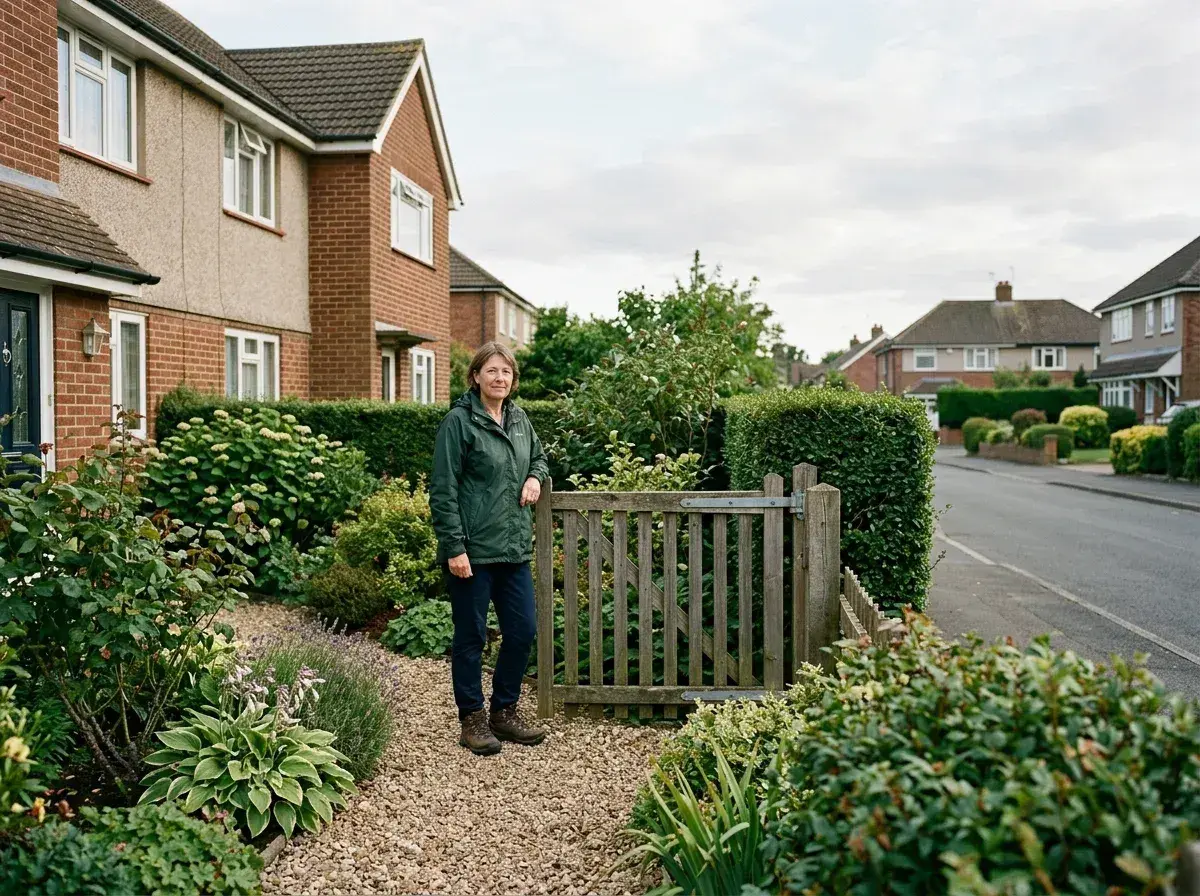
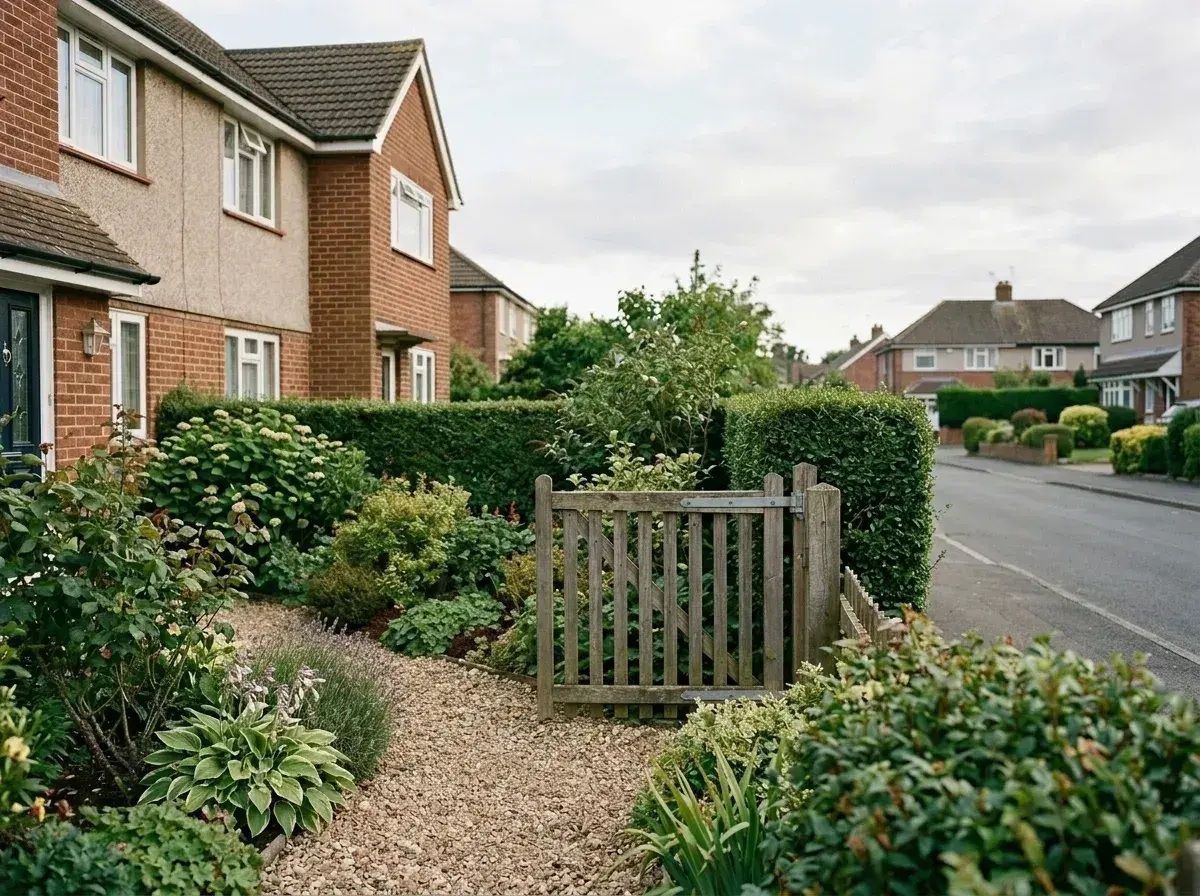 Before → after
It happens to every photographer: you capture a stunning landscape or a perfect candid moment, only to realize later that a stranger walked into the frame. Traditionally, you would need complex software and hours of tedious manual brushing to fix it. With removepeople.ai, you can remove a person from a picture simply by describing them. Our AI handles the heavy lifting, identifying the subject and reconstructing the background in under 10 seconds.
The entire process happens right in your browser. There is no software to install and no need to learn how to use layers or masks. You simply upload your image and type a short instruction like "get rid of the person in the background" or "delete the man on the left." Our model understands your plain English commands and executes the edit with professional precision.
Whether you are working with a high-resolution shot from a professional camera or a quick snap from your phone, our tool is designed to deliver clean, watermark-free results. Because we prioritize your privacy, your images are processed entirely in memory. We never store your photos, never write them to a disk, and never use your personal content to train our AI. Once your edit is finished and returned to you, the data is gone.
This is one situation covered by our main guide, Remove a Person from a Photo — start there if you want the full walkthrough.
From Phone Snaps to Screenshots: How Source Affects Quality
Our AI is highly versatile and can process images from almost any source, but the quality of the final result is often tied to the quality of the original file. A camera original from a modern smartphone contains a wealth of data that helps our model understand textures, lighting, and depth. When you take out a person from a high-quality phone photo, the AI has enough information to seamlessly reconstruct the grass, pavement, or wallpaper that was hidden behind them.
Screenshots, however, are a different story. When you take a screenshot of a photo on your screen, you are essentially taking a low-resolution picture of a picture. This process discards a significant amount of visual data and introduces compression artifacts. While our tool can still remove a person from a picture that originated as a screenshot, the reconstructed area might appear slightly softer or less detailed because the AI has fewer pixels to work with. For the best results, always try to upload the original file rather than a screen capture.
Handling Scanned Prints and Messaging App Images
Many of our users want to clean up old family memories by erasing someone from a scanned physical print. Scans often come with unique challenges like grain, dust, or physical creases. Our AI is trained to interpret these textures, but the clarity of the edit will depend on the DPI (dots per inch) of your scan. A high-resolution scan will always yield a more convincing reconstruction than a quick mobile phone 'photo of a photo.'
Similarly, images saved from messaging apps like WhatsApp or Messenger are often heavily compressed to save data. This compression can blur the edges of the people you want to erase, making it harder for the AI to define a clean boundary. If you have the option, ask the sender to email the image as a 'document' or 'file' to preserve the original resolution before you upload it to our tool for editing.
Technical Limits: File Types and Sizes
To ensure the fastest processing times—usually under 10 seconds—we have a few technical guardrails in place. We support standard web formats including JPG, PNG, and WEBP. These are the most common formats for digital photography and web content. If you have a specialized format like a RAW file or a HEIC from an iPhone, you will need to convert it to a high-quality JPG before uploading.
We also maintain a 20MB file size limit. This is more than enough for most high-resolution photography, but if you are working with an exceptionally large scan or an uncompressed PNG, you might need to resize the image slightly. Staying within these limits ensures that our AI can process your request in memory without lag, providing you with a quick, efficient experience directly in your browser.
Choosing the Right Plan for Your Needs
We offer three straightforward tiers to fit different workflows. The Starter plan at $9/mo is perfect for occasional use, providing 20 edits at standard resolution. For those who need more volume and higher clarity, the Plus plan at $19/mo offers 50 edits at high resolution. Professional users who require the highest possible quality can opt for the Studio plan at $49/mo, which includes 100 edits, 4K output, and priority support.
All plans are billed monthly and can be canceled with a single click. Your unused edits refresh every month, so you always have a fresh batch of credits ready for your next project. Remember, you can test the tool for free using the sample photos on our homepage to see exactly how the AI reconstructs backgrounds before you commit to a plan.
More real results
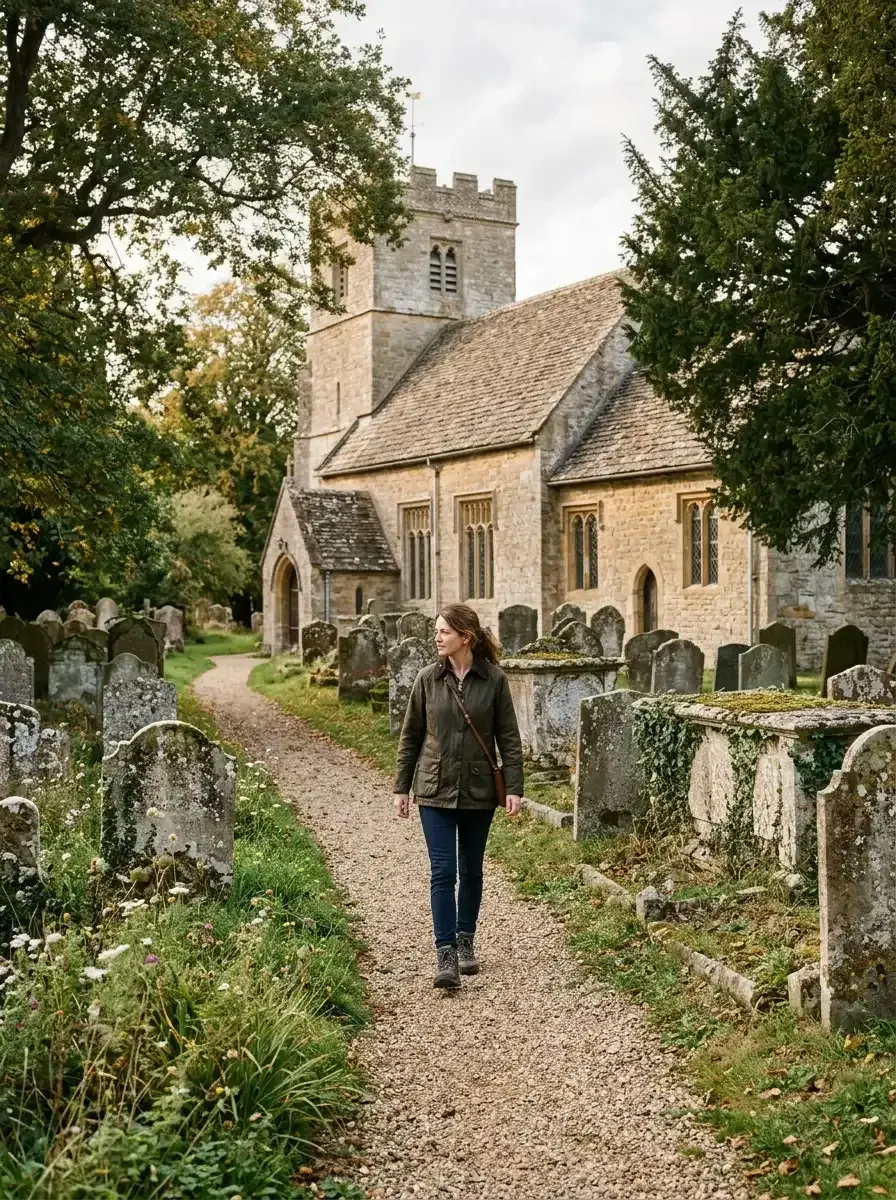
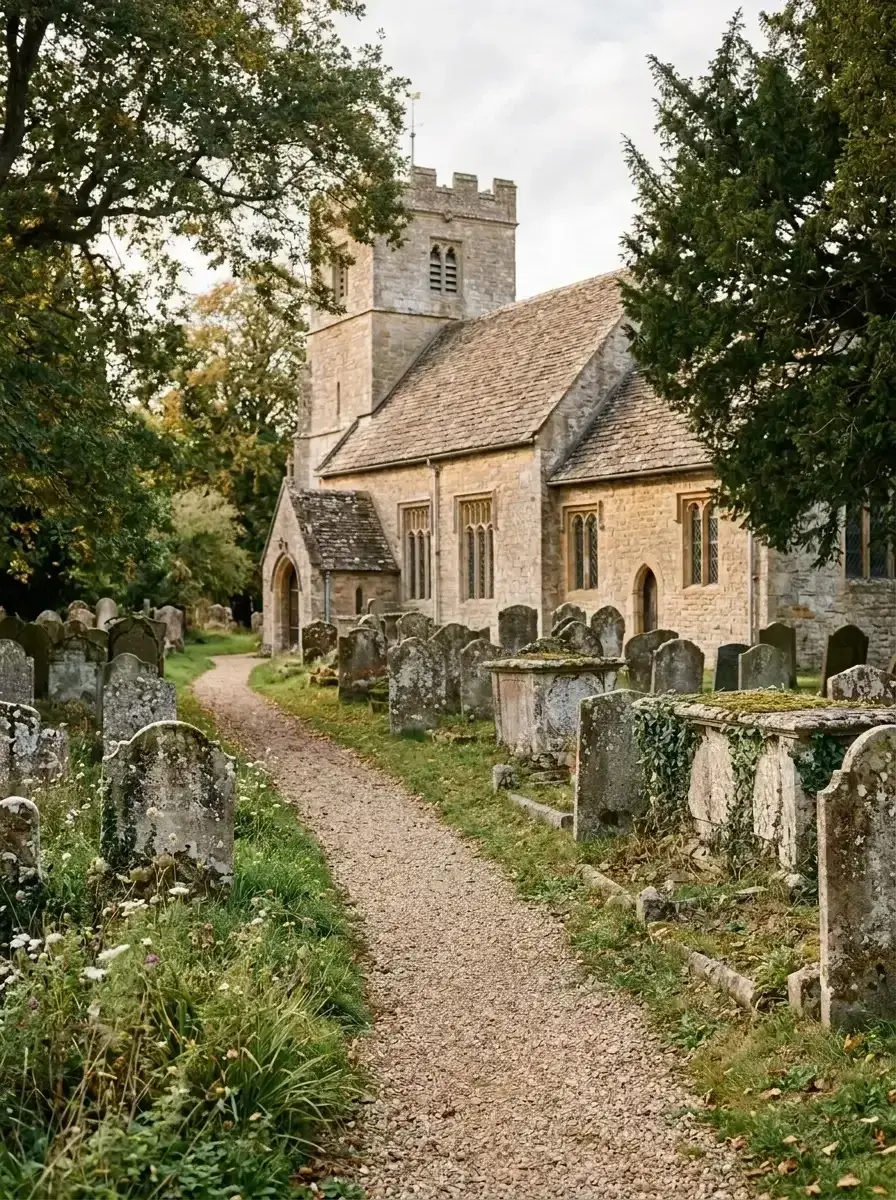 Before → after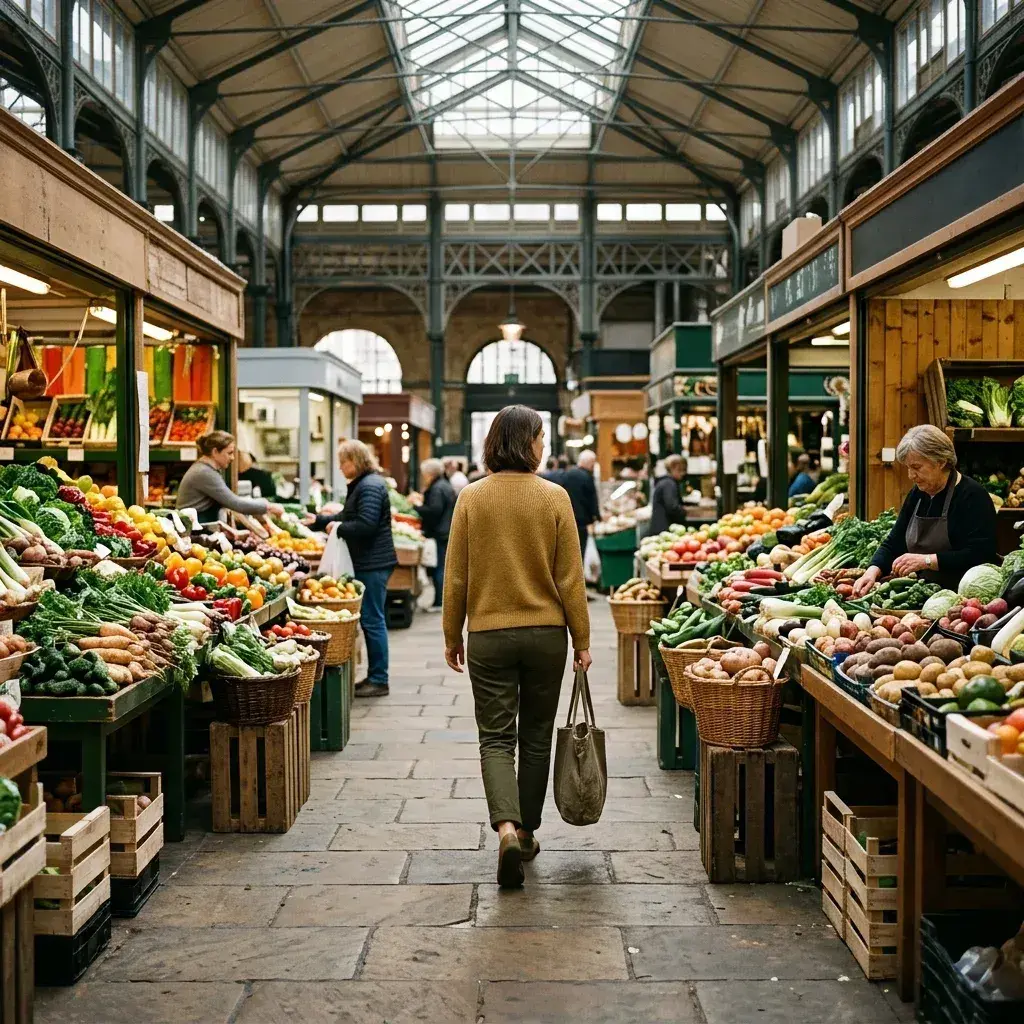
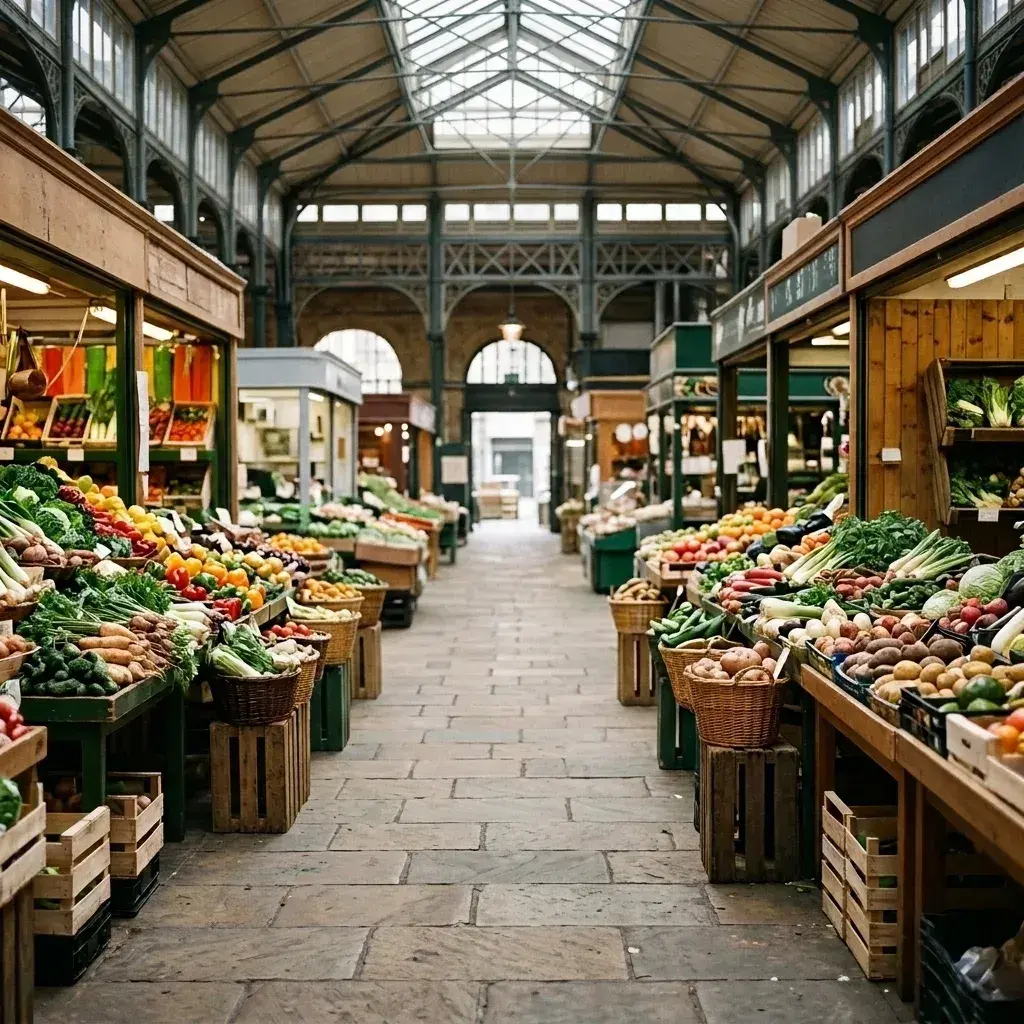 Before → after
Common questions
Does it work on a screenshot or a scanned print?
What file types and sizes can I upload?
Will a low-resolution picture still give a good result?
How do I tell the AI who to remove?
Are my photos stored on your servers?
Can I download my edited pictures without a watermark?
Fix your photo in the next minute
Plans from $9/month · cancel anytime
or drag & drop it here
JPEG · PNG · WebP · up to 20 MB · zero photo storage