Erase a Person from a Photo
Erase a person from a photo in seconds online. Describe who to remove in plain words and our AI reconstructs the background seamlessly. No watermarks.
or drag & drop it here
JPEG · PNG · WebP · up to 20 MB · zero photo storage
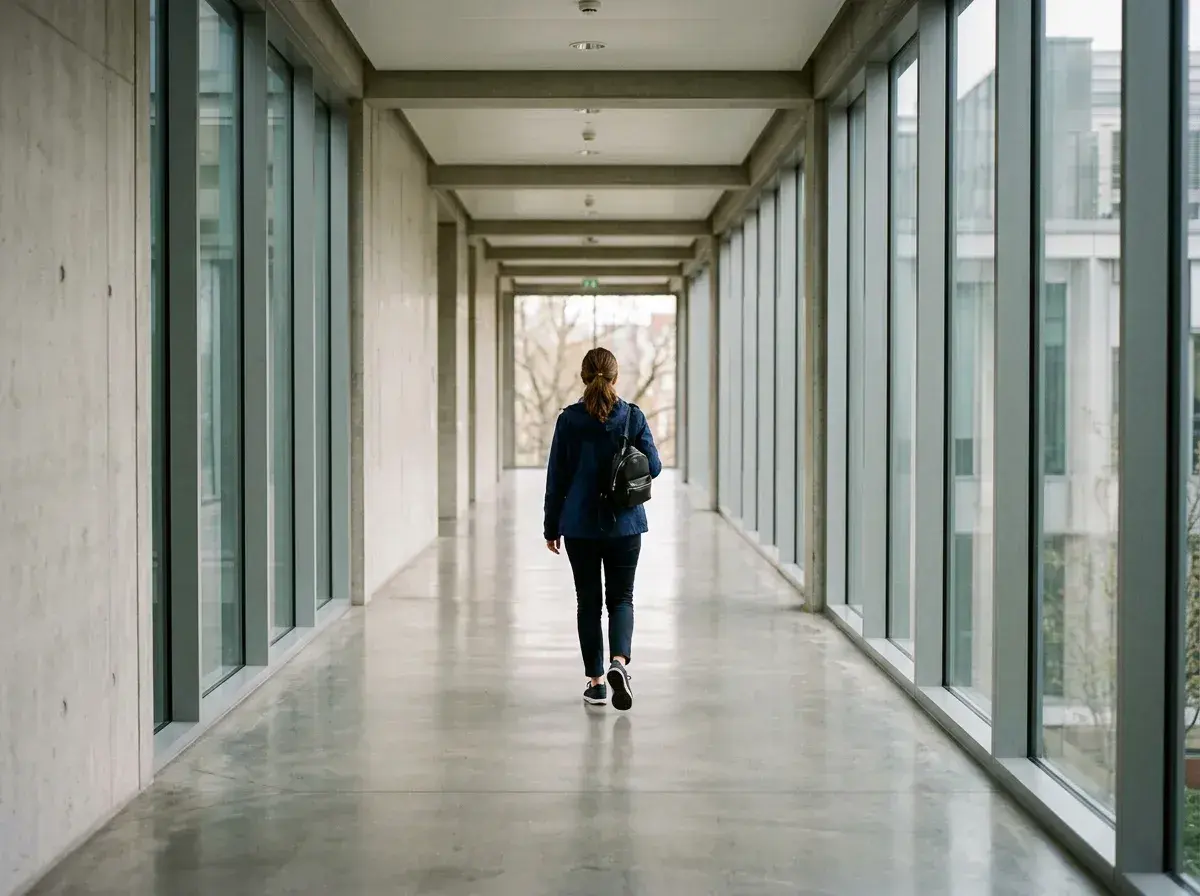
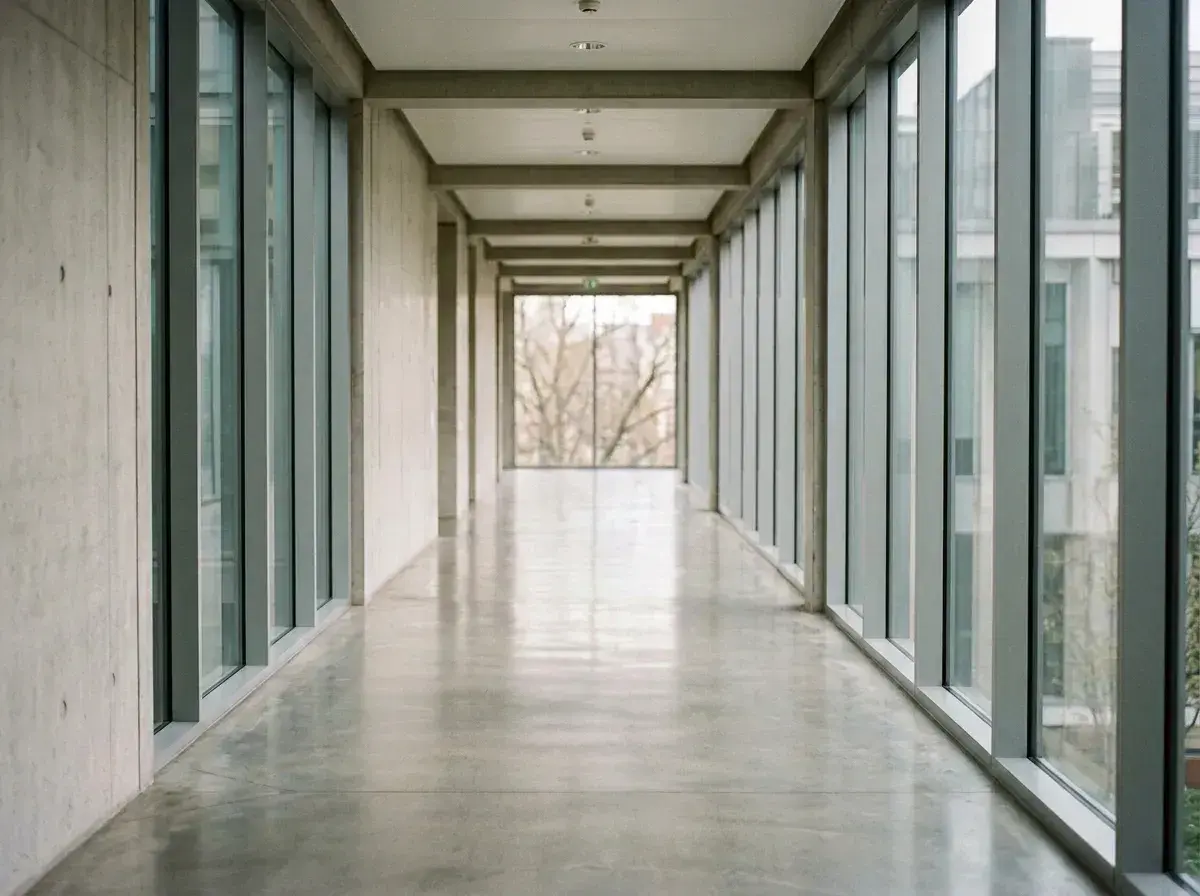 Before → after
When people search online to erase a person from a photo, they are usually looking for a clean, natural picture where someone standing in the background simply disappears. But in traditional photo editing software, terms like erase, delete, cut out, and remove mean vastly different operations. Selecting a subject and hitting delete or erase often leaves behind a stark white shape or a hollow transparent checkerboard pattern, forcing you to manually reconstruct whatever was behind them.
Our web tool takes a completely different approach. Instead of cutting out pixels or making them transparent, our AI interprets what the scene should look like without that individual. It removes the subject and automatically generates context-aware pixels—matching shadows, textures, wall lines, and lighting—so your photo looks complete without any tedious manual editing.
This is one situation covered by our main guide, Remove a Person from a Photo — start there if you want the full walkthrough.
Erase vs. Cut Out: Why Traditional Erasing Leaves a Hole
In standard graphics software, the eraser tool literally removes pixel data from a layer. If you use a standard brush to erase a person from an image, the software replaces those pixels with transparency or a solid background color like white. This is ideal if you are creating a product sticker or isolating a subject for a collage, but it is unhelpful when you want to fix a vacation snap or clean up a busy shot.
To get a usable picture after erasing someone manually, an editor would have to use clone stamps and healing tools to manually paint in missing bricks, grass, or ocean waves. Our model skips the manual brushwork entirely. When you describe who to take out, the system removes those specific pixels and fills the space by analyzing the surrounding context.
What Happens to the Pixels Behind the Removed Subject?
When you erase someone from a snapshot, the camera never captured what was standing directly behind them. There is no hidden background layer buried inside a standard JPEG or PNG file. Therefore, getting rid of a person requires intelligent reconstruction rather than simple restoration.
Our AI analyzes the entire composition—evaluating light direction, surface gradients, structural patterns, and depth cues—to predict what would have been visible if the person had not been standing there. It then synthesizes brand new pixels that seamlessly blend into the surrounding environment in under 10 seconds. The result is a clean image where the missing background looks original and untouched.
Plain Text Controls Replace Complex Selection Tools
Most photo editors require you to carefully trace around a subject with a lasso tool, adjust feathering masks, or carefully paint over clothing folds with a precision brush. If your selection spills over by a few pixels, the final edit ends up looking smeared or distorted.
With removepeople.ai, you operate directly in your browser without touching a brush or lasso. You simply type who to remove in plain words—such as "the man in the red jacket" or "everyone behind us." The AI identifies the subject, handles the segmentation, and reconstructs the image automatically. You receive a clean download without watermarks, ready to save and share.
More real results

 Before → after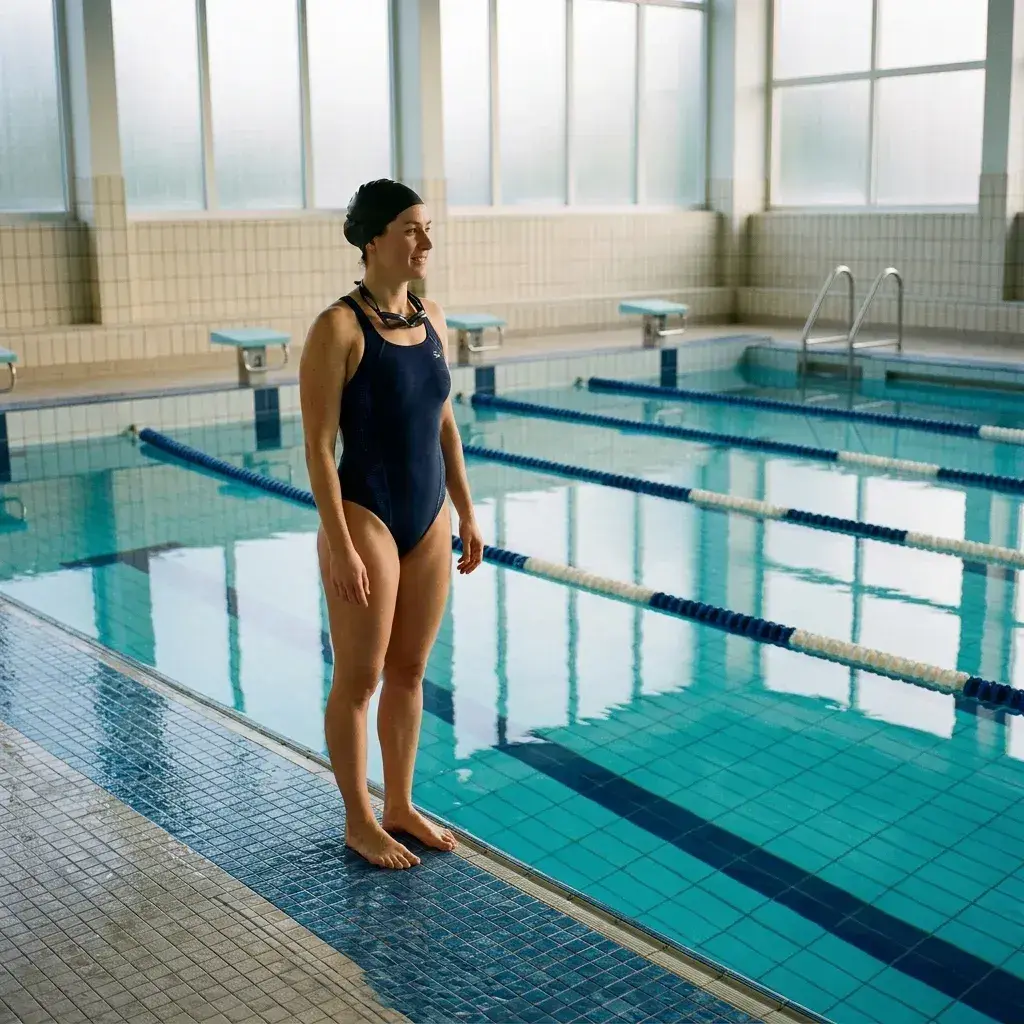
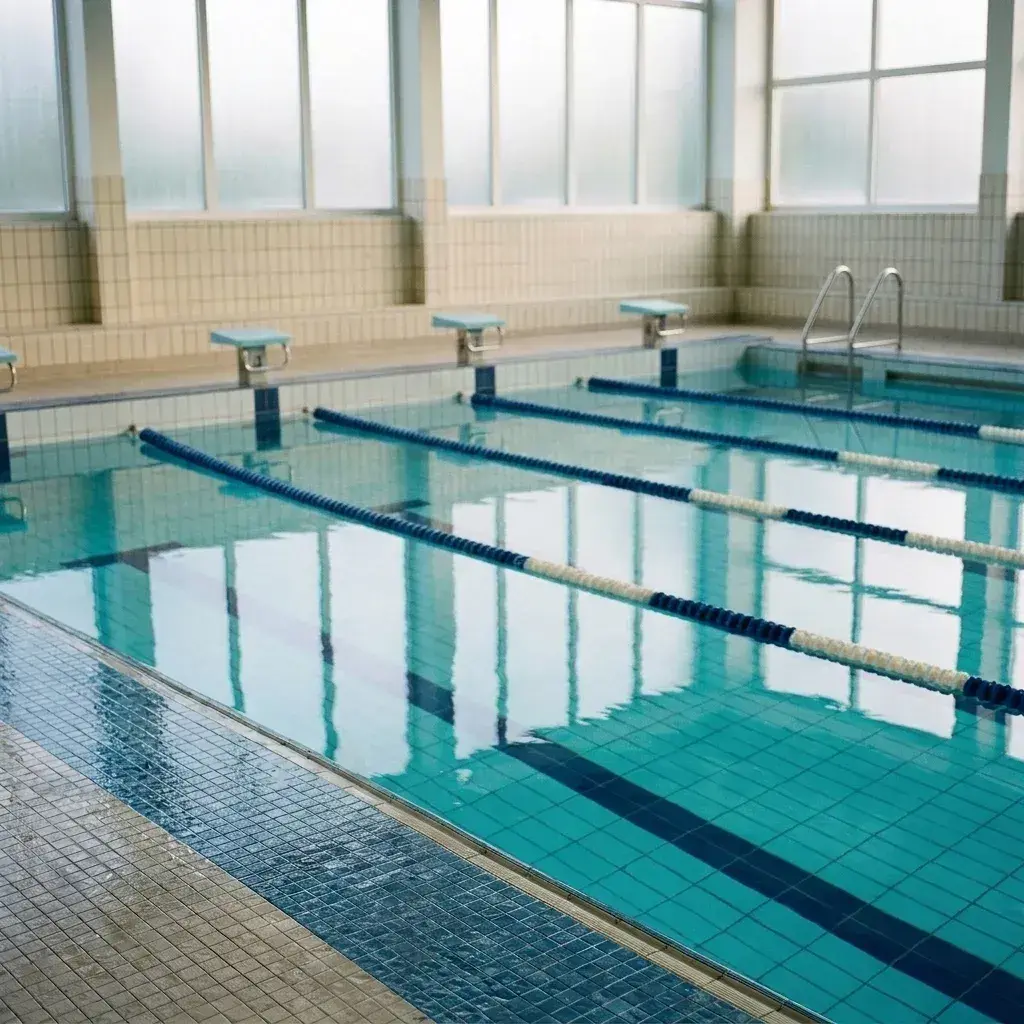 Before → after
Common questions
What is the difference between erasing and removing a person?
Does erasing leave a transparent hole in the photo?
Can I erase more than one person at a time?
Are my uploaded images saved on your servers?
Can I test the tool before subscribing to a plan?
How long does it take to process a photo online?
Fix your photo in the next minute
Plans from $9/month · cancel anytime
or drag & drop it here
JPEG · PNG · WebP · up to 20 MB · zero photo storage