How to Remove Someone from a Photo on iPhone
Learn how to remove a person from a photo on iPhone using built-in tools or our fast AI. Erase strangers in seconds with no editing skills required.
3 HD edits for $4.99 once · no subscription
or drag & drop it here
JPEG · PNG · WebP · up to 20 MB · zero photo storage

 Before → after
We have all been there: you capture the perfect shot in front of a landmark or a beautiful sunset, only to realize later that a stranger is staring directly into the lens or a group of tourists is cluttering the background. When you are out and about, you want a quick way to clean up those images without needing to transfer them to a computer or learn complex editing software.
The good news is that if you want to remove a person from a photo on iPhone, you have more options today than ever before. From Apple's latest built-in intelligence to specialized browser-based AI tools, getting a clean, professional-looking snap is now a matter of seconds rather than hours of tedious retouching.
In this guide, we will walk through the different methods available to iPhone owners. We will look at what Apple’s native tools can do, where they fall short, and how you can use our advanced AI model directly in Safari to get rid of unwanted subjects using nothing but plain English.
This is one situation the tool handles. Remove people from any photo — upload yours and describe who should go.
Using Apple's Built-in Clean Up Tool
With the introduction of iOS 18 and Apple Intelligence, iPhone users finally have a native way to erase people from their pictures. The 'Clean Up' tool is located directly inside the Photos app. To use it, you simply tap 'Edit,' select the Clean Up tool, and tap or circle the person you want to take out. It is incredibly convenient because it is free, works offline, and requires no third-party downloads.
However, Apple’s tool has its limitations. Because it runs on the device's hardware, it often prioritizes speed and privacy over heavy-duty reconstruction. While it works well for small photobombers on simple backgrounds like a clear blue sky, it often struggles with complex textures. If you try to delete someone standing on a patterned rug, a busy street, or in front of a fence, you might notice a 'smudge' or a blurry patch where the person used to be. It also tends to struggle when the person you are removing is overlapping with the main subject of your photo.
The Limitations of Markup and Third-Party Apps
Before AI became mainstream, the only way to get rid of someone in a snap was using the 'Markup' tool to draw over them—which looks terrible—or downloading a third-party app from the App Store. Apps like Adobe Photoshop Express or various 'Object Eraser' clones can do the job, but they come with significant baggage.
Most of these apps require a hefty monthly subscription, force you to watch ads, or take up valuable storage space on your device. Furthermore, many of them still rely on 'brushing' or 'masking' interfaces. Trying to precisely trace a person's silhouette with your thumb on a small iPhone screen is frustrating and often leads to jagged edges and unnatural results. If you are tired of finger-painting on your screen just to fix a single image, there is a better way to handle the task online.
The removepeople.ai Advantage: No Brushing Required
If Apple's Clean Up leaves a mess and you don't want to clutter your phone with more apps, removepeople.ai offers a powerful alternative that runs entirely in your browser. You don't need to install anything; just open Safari, upload your image, and tell our AI who to remove. Instead of masking, you use plain words like 'the man in the red jacket' or 'everyone behind us.'
Our model understands the context of your photo and reconstructs the background from scratch without manual masking. Because our processing happens in a high-performance environment, we can handle the complex textures—like grass, brick, or water—that often cause mobile-only tools to smear. When the edit is finished, you can download your high-resolution image immediately. There are no watermarks, and we never store your data. Your photo is processed in memory and is gone the moment the edit is returned; nothing is ever written to disk or used for AI training.
Choosing the Right Plan for Your Needs
While you can test our editor for free using the sample photos on our homepage, uploading your own shots requires a plan. We offer three straightforward tiers to fit your workflow. The Starter plan is $9/mo for 20 edits at standard resolution (1k). If you need more volume and higher quality, the Plus plan at $19/mo provides 50 edits at high resolution (2k).
For professional users who need the highest possible fidelity, our Studio plan is $49/mo for 100 edits and includes max resolution (4k) output. All plans allow you to cancel with a single click, and your unused edits refresh every month. Whether you are cleaning up a single vacation snap or an entire gallery of event photos, you can get studio-quality results right from your iPhone without ever opening a laptop.
More real results

 Before → after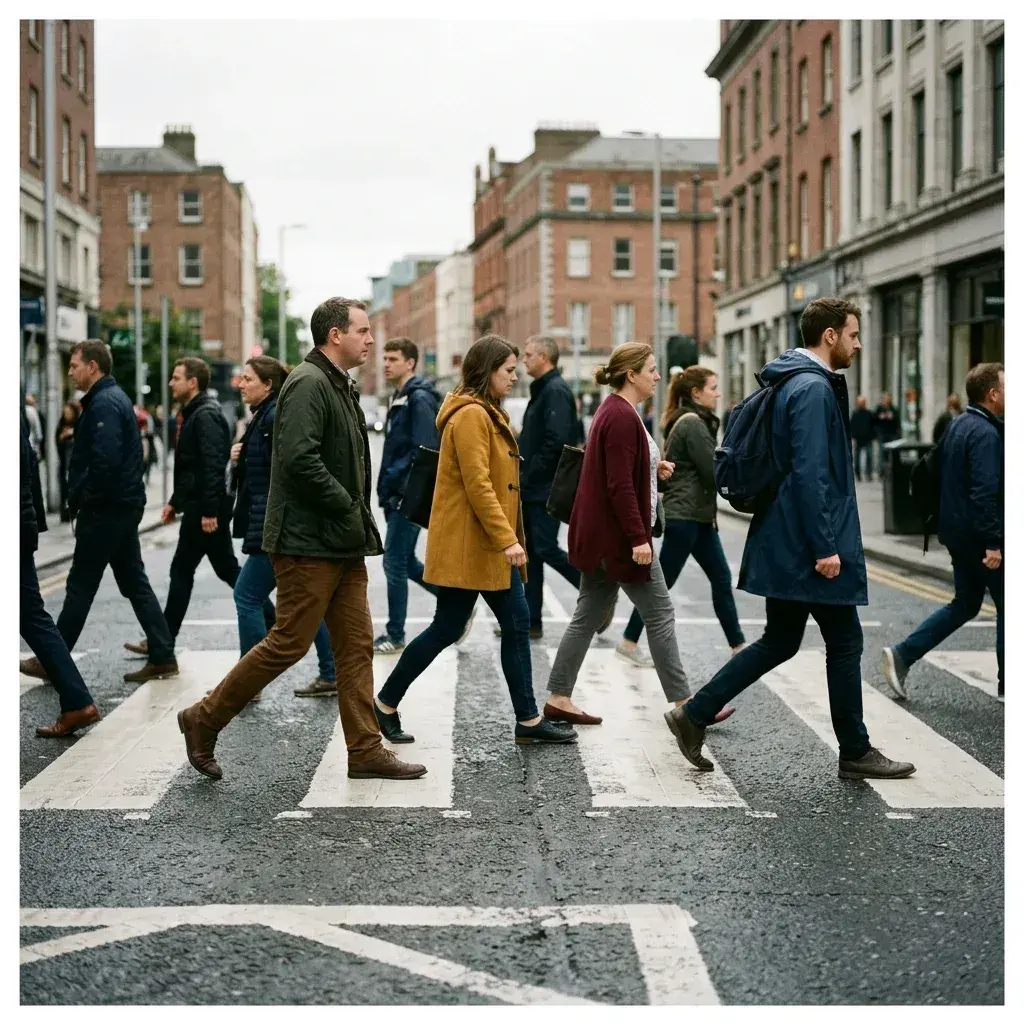
 Before → after
Common questions
Can I remove a person using the iPhone Photos app itself?
Do I need to install an app to use removepeople.ai?
Why does Apple's Clean Up sometimes leave a smudge?
How is removepeople.ai different from the Samsung Object Eraser?
Is it safe to upload my private photos to an online tool?
What happens if I don't use all my edits in a month?
Ready to fix your photo?
3 HD edits for $4.99 once · no subscription. Each new generation uses one edit.
or drag & drop it here
JPEG · PNG · WebP · up to 20 MB · zero photo storage