How to Remove People from Photos in Photoshop
Learn how to remove people from photos in Photoshop with AI or manual tools. Prefer a browser? Describe who to remove and compare sample results.
3 HD edits for $4.99 once · no subscription
or drag & drop it here
JPEG · PNG · WebP · up to 20 MB · zero photo storage

 Before → after
Adobe Photoshop remains the gold standard for image manipulation, offering a suite of tools that can make a crowded tourist spot look like a private retreat. Whether you are a professional photographer or a hobbyist, knowing how to remove people from photos in Photoshop is a fundamental skill. However, the 'best' way to do it has changed significantly over the last year with the introduction of generative AI features.
In this guide, we will walk through the four primary methods used by pros: Generative Fill, Content-Aware Fill, the Clone Stamp, and the Patch tool. Each has a specific use case, and more importantly, each has a specific way it tends to fail. Understanding these limitations will help you decide when to stick with Adobe and when to look for a faster, more automated alternative.
While Photoshop offers unmatched control, it also requires a subscription, a powerful computer, and a fair amount of patience. If you find the manual masking and layering process tedious, we will also show you how our AI tool can achieve professional results in your browser using nothing but plain English instructions.
This is one situation the tool handles. Remove people from any photo — upload yours and describe who should go.
Method 1: Generative Fill (The AI Powerhouse)
Generative Fill is the newest and most effective way to take out a person from a shot. To use it, select the Lasso tool and draw a loose selection around the person you want to delete, including a bit of the surrounding area so the AI understands the context. Once selected, click 'Generative Fill' in the Contextual Task Bar, leave the prompt box empty, and hit 'Generate.'
The AI analyzes the lighting, perspective, and texture of the image to reconstruct what should be behind the subject. It usually provides three variations to choose from. The primary failure of this method is 'hallucination.' Sometimes the AI will replace a person with a weirdly shaped rock, a distorted bench, or a blurry object that doesn't belong. It can also struggle with very high-resolution files, sometimes resulting in a patch that looks slightly softer than the original pixels.
Method 2: Content-Aware Fill (The Reliable Standard)
Before generative AI, Content-Aware Fill was the go-to. You select the person, go to Edit > Content-Aware Fill, and a dedicated workspace opens. Here, you can use the sampling brush to tell Photoshop exactly which parts of the image it should use to fill the gap. This is excellent for simple backgrounds like grass, sky, or sand.
The biggest failure of Content-Aware Fill is the 'tiling' effect. Because it is essentially copying and pasting existing pixels from elsewhere in the image, it often repeats recognizable patterns. If you are trying to get rid of someone standing in front of a brick wall, you might notice the exact same crack in the brick appearing three times in the filled area, making the edit obvious to the naked eye.
Method 3: Clone Stamp and Patch Tools (The Manual Touch)
For tricky areas where AI fails, you have to go manual. The Clone Stamp tool (S) allows you to Alt-click a source point and 'paint' those pixels over the person. The Patch tool allows you to draw a selection and drag it to a clean area of the photo to swap the textures. These tools are essential for fixing edges or cleaning up shadows that the automated tools missed.
The failure here is human error and time. Manual cloning requires a deep understanding of perspective and light. If you aren't careful, you'll end up with 'smudging' or blurry textures that scream 'photoshopped.' It is also incredibly slow; removing a group of people from a complex city snap can take thirty minutes of meticulous clicking.
The Faster Alternative: RemovePeople.ai
If you don't have the time to master the Lasso tool or the budget for a Creative Cloud subscription, there is a better way. Our AI tool allows you to remove people from photos online without any brushing, masking, or manual selection. You simply upload your image and type who you want to disappear—for example, 'the woman in the background' or 'everyone except the couple.'
Our model processes the request in memory and reconstructs the background without manual masking. There is nothing to install; the entire process happens in your browser. While Photoshop requires you to be an editor, our tool only requires you to be able to describe what you see. You can even test it out on our homepage using our sample photos to see the quality for yourself before committing to a plan.
More real results

 Before → after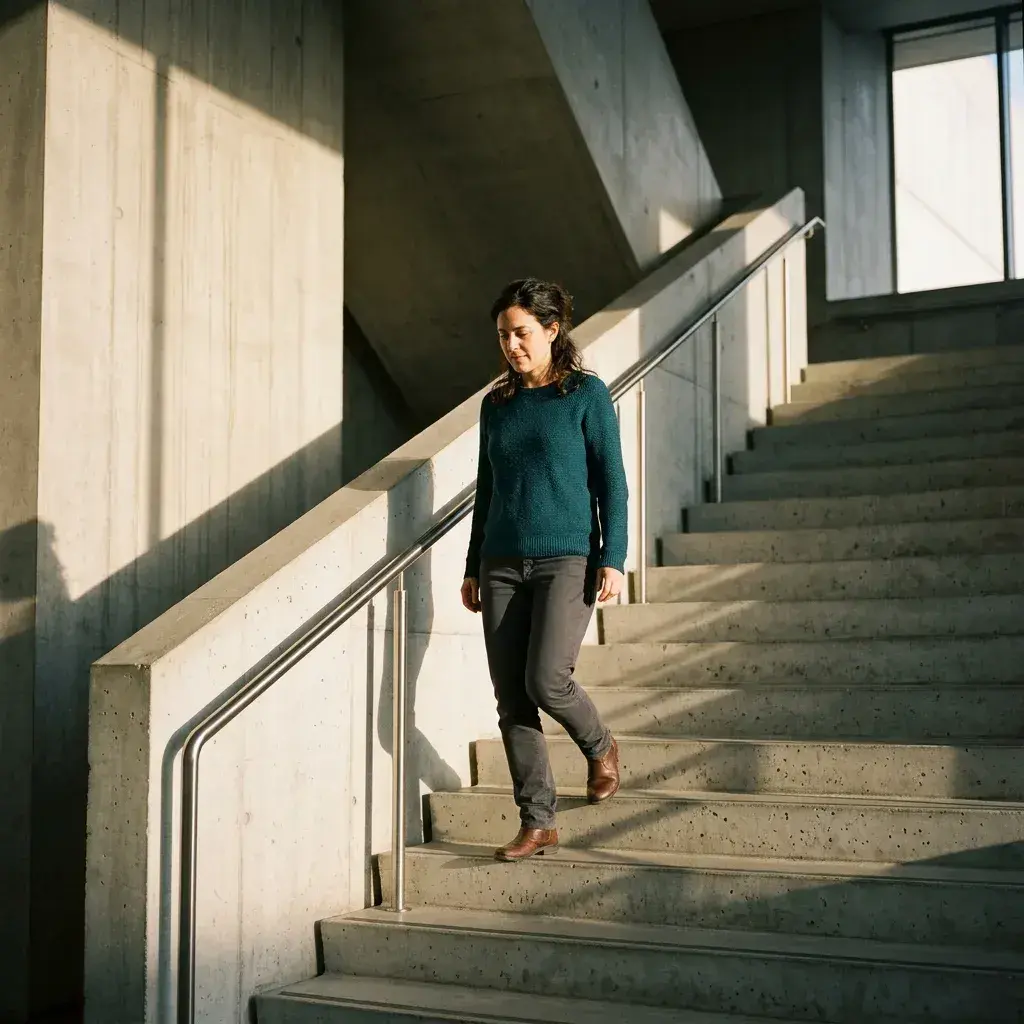
 Before → after
Common questions
Which Photoshop tool is best for removing a person?
Why does Content-Aware Fill repeat parts of the background?
Do I need Photoshop at all to remove someone from a photo?
How do I handle shadows when I take out a person in Photoshop?
Is my data safe when using an online AI person remover?
Ready to fix your photo?
3 HD edits for $4.99 once · no subscription. Each new generation uses one edit.
or drag & drop it here
JPEG · PNG · WebP · up to 20 MB · zero photo storage